🖥️

Fartrix is a Windows app

This application is designed for Windows PC. Please visit this site from a desktop or laptop computer to download Fartrix.

Getting Started

Your download is on the way!

Follow these 4 simple steps to install Fartrix and start making your colleagues laugh in minutes.

Your download should start automatically

If it doesn't, click here to download farpp.daa manually.

Up and running in 5 steps

No installer. No signup. No weird permissions. Just download, open, and double-click.

1

Download farpp.daa

When you clicked "Download Free for Windows", your browser should have started downloading farpp.daa automatically.

The file lives in your Downloads folder. It's a compact disk image — around 20 MB, so it only takes a few seconds on a typical connection.

💡 Can't find it? Press Ctrl + J in your browser to open the downloads list — farpp.daa will be at the top.
Fartrix file in Downloads
2

Install PowerISO (if you don't have it)

The farpp.daa file is a disk image — you'll need PowerISO to open it. If you already have it installed, skip to step 3.

👉 Download PowerISO from the official site

After the download finishes, run the installer and follow the prompts. PowerISO has a free trial that works forever for opening .daa files — perfect for what we need.

💡 Alternative free tools: If you prefer open-source software, DAEMON Tools Lite can also open .daa files for free.

PowerISO

Opens .daa disk images on Windows

Download PowerISO →

poweriso.com · Free trial · Windows

3

Open farpp.daa & find the Farpp folder

With PowerISO installed, double-click farpp.daa in your Downloads folder. PowerISO will open it like a virtual CD.

Inside, you'll see a yellow folder called Farpp (the app's internal name) — that's Fartrix. Right-click → Extract (or drag it onto your Desktop) so it stays on your computer permanently.

💡 Why extract it? Running an app from inside a mounted disk image can cause issues. Always extract the Farpp folder first, then run it from there.
The Farpp yellow folder inside the disk image
4

Open the folder & find Farpp.exe

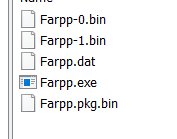
Now double-click the extracted Farpp folder to open it. You'll see a handful of files inside:

📄 Farpp-0.bin
📄 Farpp-1.bin
📄 Farpp.dat
🎮 Farpp.exe ← this is the one!
📄 Farpp.pkg.bin

The Farpp.exe is the app itself. The other files are its data — don't delete them, they all need to live together in the same folder.

Contents of the Farpp folder - Farpp.exe and support files
5

Double-click Farpp.exe & enjoy!

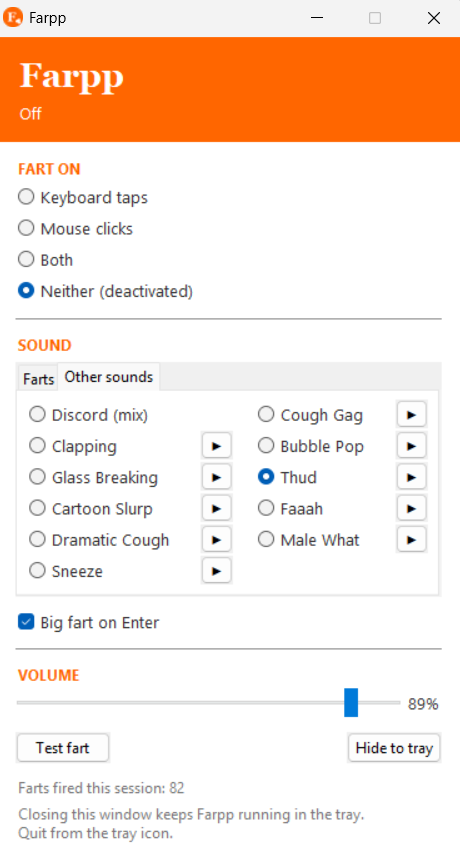
Double-click Farpp.exe and the orange Fartrix app window will pop up (it may show the app's internal name "Farpp" in the title bar — that's expected). Choose your trigger (keyboard taps, mouse clicks, or both), pick a sound, slide the volume, and you're off.

Click "Hide to tray" to tuck Fartrix into your system tray (bottom right). It'll keep running quietly in the background, farting on cue. 💨

⚠️

Windows SmartScreen warning

The first time you run Fartrix, Windows may show a blue "Windows protected your PC" screen. This is normal for new indie apps. Just click "More info" → "Run anyway". Fartrix is safe — it only plays sounds and never touches your files.

Fartrix app running - the control window

That's it! You're the funniest in the office!

Enjoy 19 hilarious sounds that'll turn every meeting, every typed email, and every spreadsheet into comedy gold.

Back to Fartrix Home